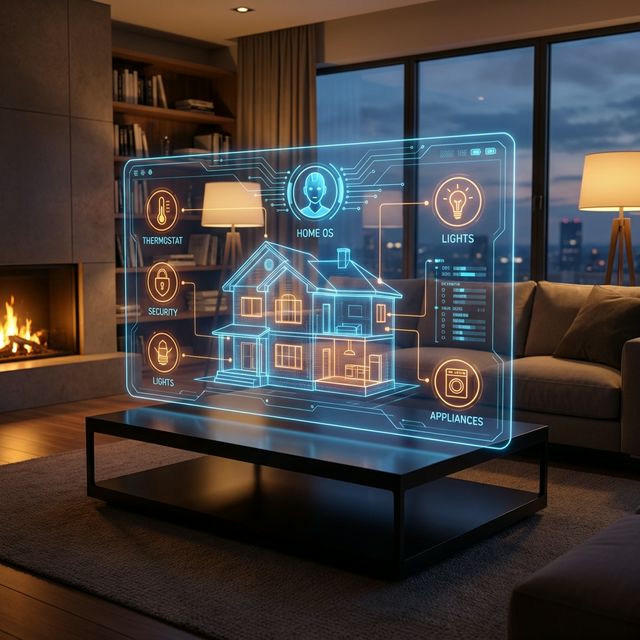
For decades, science fiction promised us a "Jarvis." A voice in the ceiling that could not only answer questions but actually do things. It could lock the doors, dim the lights, and start the coffee maker.
Today, we have "smart speakers" that are barely smart. "Turn on the living room lights" works fine. But try saying, "I'm going to watch a movie, so get the room ready like a cinema, but keep the hallway light on low because I'm expecting a delivery."
Siri, Alexa, and Google Assistant will likely fail or just play a song called "Cinema."
OpenClaw changes this. By connecting a reasoning agent to your smart home, you move from "Command & Control" (flipping switches with your voice) to "Intent-Based Automation" (describing a goal and letting the AI figure out the steps).
In this guide, we will walk through connecting OpenClaw to the heart of the DIY smart home: Home Assistant.
Why Local AI is Critical for Smart Homes
Before we start wiring things up, let's talk about why you shouldn't just hook ChatGPT up to your door locks.
- Latency: Cloud AI has a delay. If you say "Turn on the lights," and it takes 3 seconds for the signal to go to OpenAI's server, get processed, and come back... that's 2.9 seconds too long. You'll have already flipped the switch manually. Local AI (OpenClaw) runs on your LAN. It's instant.
- Privacy: Your smart home data reveals everything about your life. When you wake up, when you leave for work, when you are on vacation. Do you want that data stream fed into a cloud model?
- Reliability: If your internet goes down, your house shouldn't stop working. OpenClaw runs offline.
Step 1: The Home Assistant Connection
OpenClaw doesn't need to reinvent the wheel. It leverages Home Assistant (HA), the open-source platform that connects to over 2,500 brands of devices (Hue, Sonos, Ecobee, Ubiquiti, etc.).
If you don't have Home Assistant running yet, start there.
Once HA is running, we need to give OpenClaw permission to talk to it.
- Go to your Home Assistant Profile (bottom left) -> Security.
- Scroll down to Long-Lived Access Tokens.
- Create a Token named "OpenClaw Agent".
- Copy this token immediately. You won't see it again.
Now, access your OpenClaw terminal and install the skill:
openclaw skills install home-assistant
Configure it in your ~/.openclaw/config.yaml:
skills:
  home_assistant:
    url: "http://homeassistant.local:8123"
    token: "YOUR_LONG_LIVED_ACCESS_TOKEN"
    verify_ssl: false
Step 2: Defining "Safe" Tools
This is the most important step. Do not give an AI unrestricted access to your home.
You typically don't want OpenClaw to unlock the front door or turn off the freezer. You do want it to control lights, media players, and climate.
We whitelist entities using the exposed_domains configuration:
    exposed_domains:
      - light
      - switch
      - climate
      - media_player
      - weather
This ensures that even if the AI "hallucinates" a command to unlock the garage, the skill will reject it because lock is not in the allowed list.
Step 3: Intent-Based Workflows
Now for the magic. We don't issue commands; we state intent.
Scenario A: "The Focus Mode"
You:
"I need to focus on coding for the next two hours. Minimize distractions."
OpenClaw (Reasoning):
- User wants to focus.
- I should check the current state of lights and media.
- Action: Change office lights to 'Cold White' and 100% brightness for alertness.
- Action: Check if the TV is playing. If so, pause it.
- Action: Set the thermostat to a comfortable 22°C.
- Action: Send a notification to the phone: "Focus mode active."
OpenClaw executes these 4 separate API calls to Home Assistant seamlessly.
Scenario B: "The Red Alert"
You:
"I just got a critical server alert email. Make sure I don't miss it."
OpenClaw (Reasoning):
- User received critical info.
- I need to get their attention in the physical world.
- Action: Flash the 'Office Desk Lamp' red repeatedly.
- Action: Announce "Critical Server Alert" on the Sonos speaker.
Writing Custom Automations (Scripts)
You can also teach OpenClaw new tricks by writing Python scripts in your ~/.openclaw/scripts/ folder.
Here is a simple script called monitor_air_quality.py:
from openclaw.skills import HomeAssistant

def check_air():
    ha = HomeAssistant()
    # Get sensor data
    pm25 = ha.get_state("sensor.living_room_pm25")

    if float(pm25.state) > 35:
        # Air is bad!
        print("Air quality is poor. Turning on purifier.")
        ha.call_service("switch", "turn_on", {"entity_id": "switch.air_purifier"})
        return "Air purifier activated due to high PM2.5 levels."
    else:
        return "Air quality is good."
You can now tell OpenClaw: "Check the air quality every hour and fix it if it's bad." The agent will register this script as a tool and use it autonomously.
The "Jarvis" Interface
While typing is fine, connecting OpenClaw to a simpler Voice-to-Text interface (like Whisper running on your phone, or a dedicated ESP32 device) closes the loop.
Imagine walking into your room and speaking to the air:
"OpenClaw, I'm heading out for a run. Make sure the house is secure and turn off everything except the hallway light for when I get back in an hour."
The agent understands:
- Lock doors (if allowed).
- Turn off AC/Heater.
- Turn off all media.
- Turn off all lights except
light.hallway. - Wait 1 hour? No, that's for later. Just set the state now.
Conclusion
The smart home of the future isn't about more buttons on your phone screen. It's about fewer buttons. It's about a home that understands context.
OpenClaw brings that context. It bridges the gap between the digital world (your calendar, your emails, your code) and the physical world (your lights, your speakers, your locks).
Start small. Connect your lights. Then, let the agent take over. Just remember to keep the lock domain out of the whitelist... for now.