Text is fine. Text is functional. But when your AI agent talks back to you — in a natural, expressive human voice — something clicks. The interaction stops feeling like typing commands into a terminal and starts feeling like a conversation with a colleague who happens to have perfect memory and limitless patience.
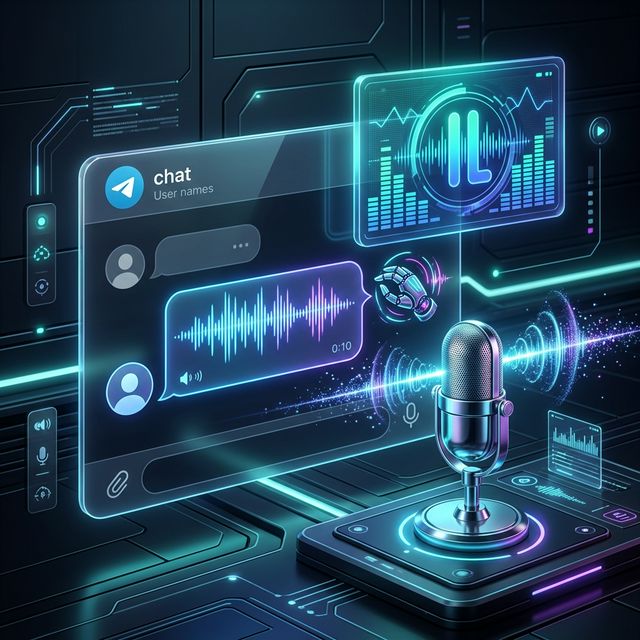
This guide is about building exactly that: an OpenClaw agent that listens to your voice messages on Telegram and responds with natural spoken audio, powered by ElevenLabs' industry-leading text-to-speech engine. No microphone setup on your workstation. No browser tab left open. Just open Telegram on your phone, hold the record button, speak your request, and hear your agent respond in a voice so natural that your friends will think you are talking to a real person.
By the end of this article, you will have a fully operational voice-in, voice-out loop running through Telegram — accessible from any device, anywhere in the world.
Why Telegram + ElevenLabs?
Before diving into configuration, it is worth understanding why this particular combination is so powerful.
Telegram as the Interface
Telegram is arguably the best messaging platform for AI agent integration, and OpenClaw's Telegram skill takes full advantage of its capabilities:
- Voice messages are first-class citizens. Telegram natively supports recording and sending voice messages with a single tap-and-hold gesture. No third-party apps or plugins required.
- Bot API is excellent. Telegram's Bot API is mature, well-documented, and supports rich media responses including voice notes, images, documents, and inline keyboards.
- Cross-platform availability. Telegram runs on iOS, Android, macOS, Windows, Linux, and the web. Your voice-enabled agent travels with you on every device.
- No rate limits for personal bots. Unlike some messaging platforms that throttle bot interactions, Telegram personal bots have generous limits that comfortably handle frequent voice exchanges.
- End-to-end encryption option. For sensitive conversations, Telegram's secret chat mode provides an additional layer of privacy.
ElevenLabs as the Voice
ElevenLabs has emerged as the clear leader in AI text-to-speech for good reason:
- Naturalness. Their voices are nearly indistinguishable from real human speech. The prosody, intonation, and emotional inflection sound genuinely human rather than robotic.
- Speed. The Turbo v2.5 model delivers audio in near real-time — critical for a conversational experience where delays feel awkward.
- Voice variety. Choose from hundreds of pre-built voices or clone your own. Want your agent to sound like a calm British narrator? A cheerful American assistant? A no-nonsense Australian colleague? It is all available.
- Multilingual support. ElevenLabs supports 32 languages with the Turbo v2.5 model, and over 70 languages with their latest V3 model — so your agent can respond in the language you speak to it.
The combination of Telegram's ubiquitous, low-friction voice messaging and ElevenLabs' natural speech creates an experience that feels less like using a tool and more like chatting with a very capable friend.
Prerequisites
Before starting, make sure you have the following:
- A running OpenClaw instance — either local or on a server. If you are running OpenClaw on a Raspberry Pi or home server, that works perfectly.
- An ElevenLabs account — the free tier includes enough credits to test (10,000 characters/month), but the Starter plan ($5/month for 30,000 characters) is recommended for regular use.
- A Telegram account — you will need this to create a bot.
- OpenClaw's Telegram skill installed — we will cover this in the setup.
Step 1: Create Your Telegram Bot
If you have not already connected OpenClaw to Telegram, the first step is creating a bot through Telegram's BotFather:
- Open Telegram and search for @BotFather.
- Send
/newbotand follow the prompts to name your bot. - BotFather will give you a Bot Token — a long string that looks like
7123456789:ABCdefGHIjklMNOpqrsTUVwxyz. Save this securely.
You:       /newbot
BotFather: Alright, a new bot. How are we going to call it?
           Please choose a name for your bot.
You:       My OpenClaw Agent
BotFather: Good. Now let's choose a username for your bot.
You:       my_openclaw_bot
BotFather: Done! Congratulations on your new bot. You can find it at
           t.me/my_openclaw_bot. Use this token to access the HTTP API:
           7123456789:ABCdefGHIjklMNOpqrsTUVwxyz
Security Tip: Restrict your bot so only you can interact with it. BotFather's
/setjoingroupscommand can disable group access, and OpenClaw's Telegram skill has anallowed_userssetting to whitelist specific Telegram user IDs.
Step 2: Install and Configure the Telegram Skill
Install the Telegram skill from ClawHub:
openclaw skills install telegram-bot
Then configure it in your OpenClaw config:
// ~/.openclaw/openclaw.json
{
  skills: {
    telegram: {
      bot_token: "your-bot-token-from-botfather",
      allowed_users: [123456789],          // Your Telegram user ID
      auto_start: true,                    // Start the bot when OpenClaw launches

      // Voice message handling
      voice_messages: {
        enabled: true,
        transcription_provider: "whisper", // Uses your existing STT config
        respond_with_voice: true,          // Reply with voice, not text
        also_send_text: true,              // Include a text transcript too
      },
    },
  },
}
The also_send_text: true option is particularly useful — it means you get both the spoken audio response and a text version, so you can skim replies when you cannot listen (in a meeting, on a noisy train, etc.).
Find your Telegram user ID by messaging @userinfobot on Telegram. It will reply with your numeric ID.
Step 3: Set Up ElevenLabs Text-to-Speech
Sign up at elevenlabs.io and grab your API key from the Profile settings page.
Now configure ElevenLabs as your TTS provider in OpenClaw:
// ~/.openclaw/openclaw.json
{
  voice: {
    tts: {
      provider: "elevenlabs",
      api_key: "your-elevenlabs-api-key",
      voice_id: "9BWtsMINqrJLrRacOk9x",    // "Aria" — an expressive, natural female voice
      model: "eleven_turbo_v2_5",            // Lowest latency model
      stability: 0.5,                        // 0-1: lower = more expressive
      similarity_boost: 0.75,                // 0-1: higher = closer to base voice
      output_format: "mp3_44100_128",        // High quality for Telegram
    },
  },
}
Choosing the Right Voice
ElevenLabs offers a Voice Library with hundreds of options. Here are some popular choices for an AI assistant from their current default lineup:
| Voice | ID | Description | Best For |
|---|---|---|---|
| Aria | 9BWtsMINqrJLrRacOk9x |
Expressive, natural, female | General assistant |
| Darian | (check dashboard) | Warm, grounded storyteller, male | Briefings & narration |
| Elara | (check dashboard) | Crisp, professional narrator, female | Business use |
| Elowen | (check dashboard) | Upbeat, modern narrator, female | Casual interactions |
| Baxter | (check dashboard) | Dry, calm Australian, male | Relaxed assistant |
Note: ElevenLabs is transitioning its default voices throughout 2026. Legacy voices like Adam, Rachel, and Antoni are being phased out by December 31, 2026. Check your ElevenLabs dashboard for the latest voice IDs — navigate to Voices > Voice Library and click any voice to copy its ID.
You can preview all voices at elevenlabs.io/voice-library before deciding.
Tuning Voice Parameters
The stability and similarity_boost settings let you fine-tune how the voice sounds:
- Stability (0.0–1.0): Lower values produce more expressive, varied speech. Higher values produce more consistent, predictable tone. For a conversational assistant, 0.4–0.6 works well.
- Similarity Boost (0.0–1.0): Higher values make the voice sound closer to its original training. Lower values introduce more variation. Keep this at 0.7–0.8 for natural results.
// More expressive, conversational tone
{ stability: 0.35, similarity_boost: 0.7 }

// More consistent, professional tone
{ stability: 0.7, similarity_boost: 0.85 }
Step 4: Configure the Complete Voice Loop
Now tie it all together. The magic happens when you configure the Telegram skill to route voice messages through the full pipeline — transcription in, LLM processing, and voice out:
// ~/.openclaw/openclaw.json — complete voice configuration
{
  voice: {
    stt: {
      provider: "whisper",
      model: "whisper-1",
      api_key: "${OPENAI_API_KEY}",
    },
    tts: {
      provider: "elevenlabs",
      api_key: "${ELEVENLABS_API_KEY}",
      voice_id: "9BWtsMINqrJLrRacOk9x",
      model: "eleven_turbo_v2_5",
      stability: 0.5,
      similarity_boost: 0.75,
      output_format: "mp3_44100_128",
    },
  },
  skills: {
    telegram: {
      bot_token: "${TELEGRAM_BOT_TOKEN}",
      allowed_users: [123456789],
      auto_start: true,
      voice_messages: {
        enabled: true,
        transcription_provider: "whisper",
        respond_with_voice: true,
        also_send_text: true,
        max_voice_duration: 120,        // Max response length in seconds
        silence_trimming: true,         // Remove leading/trailing silence
      },
    },
  },
}
Restart OpenClaw to apply the configuration:
openclaw restart
Step 5: Test the Voice Loop
Open Telegram on your phone, find your bot, and send a voice message. Hold the microphone button and say something like:
"Hey, what is the weather forecast for tomorrow?"
Within a few seconds, you should receive two messages back:
- A voice note with the agent's response spoken in your chosen ElevenLabs voice.
- A text message with the transcript of the response.
If that works, congratulations — you have a talking AI agent in your pocket.
Verifying Each Stage
If something is not working, test each component individually:
# Test Telegram connection
openclaw telegram test

# Test speech-to-text
openclaw voice test-stt

# Test text-to-speech
openclaw voice test-tts

# Test the full pipeline
openclaw voice test-pipeline
Real-World Use Cases
Once the voice loop is running, the use cases multiply quickly. Here are some patterns that OpenClaw users have found particularly valuable.
The Commute Briefing
Send a voice message while walking to work: "Give me my morning briefing — calendar, emails, and anything urgent." OpenClaw gathers your calendar events, scans your inbox for flagged items, checks your task list for overdue items, and speaks a concise summary back to you. You are caught up before you reach the office.
Hands-Free Research
Cooking dinner and need to look something up: "Research the latest changes to the Australian solar rebate program and give me a summary." Your agent researches the topic, synthesizes the findings, and speaks the summary while you stir the risotto. No greasy fingerprints on your phone screen.
Voice Journaling
At the end of the day: "Save a journal entry: Today I finalized the proposal for the Henderson project. The client pushed back on the timeline so I need to revise the milestones by Friday. Also had a good idea about automating the reporting pipeline — remind me about that on Monday." OpenClaw transcribes and stores the entry, and sets a reminder for Monday about the pipeline idea.
Managing Your Team
You are running between meetings: "Send a message to the dev channel: standup is moved to 2 PM today. Also tell Sarah that I reviewed her PR and it looks good — she can merge when ready." OpenClaw sends both messages through your configured messaging integrations while you are already halfway to the next meeting room.
Quick Calculations and Lookups
Driving (safely pulled over, of course): "What is 15 percent of 847,000? And what was our revenue last quarter?" OpenClaw does the math, pulls the figure from your records, and speaks both answers.
Advanced: Custom Voice Personas
One of the more creative applications is giving different types of responses different voices. You can configure OpenClaw to use different ElevenLabs voices based on the context:
{
  voice: {
    tts: {
      provider: "elevenlabs",
      api_key: "${ELEVENLABS_API_KEY}",
      default_voice: "9BWtsMINqrJLrRacOk9x",    // Aria for general responses

      persona_voices: {
        briefing: {
          voice_id: "EIdfNdxb4fnsE39tEAB1",     // Lawrence for morning briefings
          stability: 0.7,
        },
        creative: {
          voice_id: "TDHOWxVtDS0zj6s4Jgg6",     // Alicia for brainstorming
          stability: 0.3,
        },
        urgent: {
          voice_id: "n5FCw0ouOVMADam2lTvQ",     // Caleb for urgent notifications
          stability: 0.8,
        },
      },
    },
  },
}
You can then say: "Put on your creative voice and brainstorm ten names for my new podcast." OpenClaw switches to the Alicia voice with higher expressiveness for the brainstorming session, then reverts to Aria for your next regular request.
Cost Considerations
Running a voice-enabled agent through Telegram is surprisingly affordable:
| Component | Cost | Notes |
|---|---|---|
| Telegram Bot | Free | No cost for personal bots |
| Whisper API (STT) | ~$0.006/min | Transcribing your voice messages |
| ElevenLabs (TTS) | ~$0.06/1K chars | Speaking responses (Turbo v2.5 model) |
| OpenClaw | Free | Open source |
A typical interaction — a 15-second voice message generating a 500-character response — costs roughly $0.03 per exchange for STT and TTS combined (about $0.0015 for Whisper + $0.03 for ElevenLabs Turbo). If you send 20 voice messages per day, that is under $0.60/day or about $18/month. Cheaper than most SaaS subscriptions and significantly more useful.
The ElevenLabs Starter plan ($5/month) gives you 30,000 characters, which covers roughly 60 average-length responses. The Creator plan ($22/month) bumps this to 100,000 characters — enough for heavy daily use.
Reducing Costs
If you want to cut costs further:
- Use local Whisper for STT — eliminates the transcription cost entirely.
- Use shorter TTS responses — configure your system prompt to keep voice responses concise.
- Use text for long responses — set a character threshold above which OpenClaw sends text instead of voice.
{
  skills: {
    telegram: {
      voice_messages: {
        max_tts_characters: 800,          // Text-only if response exceeds 800 chars
        voice_summary_for_long: true,     // Speak a summary, send full text separately
      },
    },
  },
}
Troubleshooting
Voice messages are not being received
Ensure your bot token is correct and that the Telegram skill is running (openclaw status). Check that your Telegram user ID is in the allowed_users list.
Transcription is inaccurate
Background noise is the most common culprit. Telegram compresses voice messages heavily, which can reduce transcription quality. Speaking clearly and minimizing background noise helps significantly.
ElevenLabs responses sound truncated
Check the max_voice_duration setting. If your response is being cut off, increase this value. Also verify that your ElevenLabs plan has sufficient character quota remaining.
Latency is too high
The Turbo v2.5 model is the fastest ElevenLabs option. If latency is still an issue, check your internet connection speed and consider running OpenClaw on a server with a fast connection rather than a local machine behind a slow upload link.
Bot is not responding
Run openclaw logs --skill telegram to see the Telegram skill's log output. Common issues include expired bot tokens and misconfigured webhook URLs.
Conclusion
Giving OpenClaw a voice through Telegram and ElevenLabs transforms an already capable AI agent into something that feels genuinely futuristic. You pull out your phone, hold the microphone button, and have a natural conversation with an AI that knows your preferences, remembers your projects, and can actually do things — send messages, research topics, manage your schedule, and control your tools.
The setup takes about 20 minutes. The cost is well under a dollar a day for regular use. And the experience is unlike anything else available in the open-source AI space.
Your agent is not just smart anymore. It has a voice. And it is waiting for you on Telegram.