
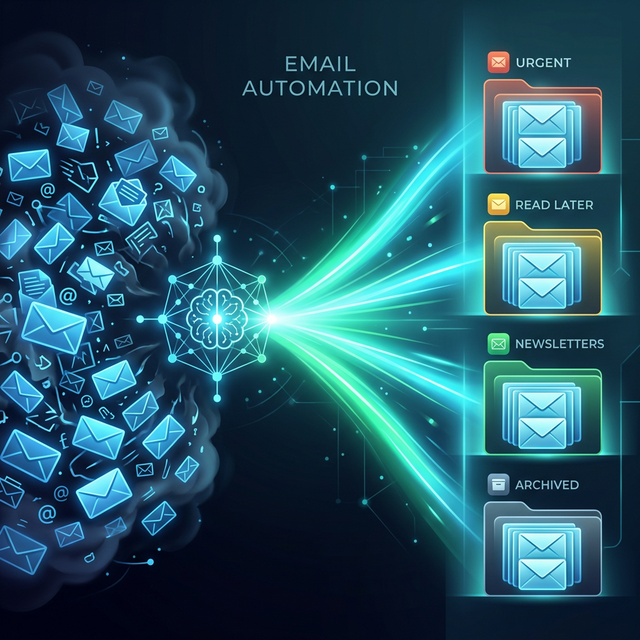
The average professional receives 121 emails per day. Most of them do not require deep thought — they are notifications, newsletters, FYI threads, meeting confirmations, and routine requests that need a quick response. But the sheer volume is overwhelming. The time spent opening, reading, categorizing, replying, and following up on email consumes 2–3 hours of every workday for most knowledge workers.
OpenClaw's email management capabilities do not replace your judgment on important messages. What they do is handle the 90% of email work that is repetitive, predictable, and mechanical — so that when you open your inbox, you see only the messages that genuinely need your human attention.
This guide walks through setting up automated email management with OpenClaw, from basic triage to advanced workflows like follow-up tracking and smart replies.
How OpenClaw Handles Email
OpenClaw connects to your email account through IMAP/SMTP or platform-specific APIs (Gmail API, Outlook Graph API). It reads incoming messages, applies your rules and preferences, and takes action — all without you opening a browser.
The key components are:
- Triage: Automatically categorize incoming emails by priority and type
- Smart Summaries: Condense long email threads into bullet-point summaries
- Draft Replies: Generate reply drafts for routine messages
- Follow-Up Tracking: Flag sent messages that have not received a response
- Newsletter Management: Organize, summarize, or unsubscribe from newsletters
- Schedule Management: Detect meeting requests and coordinate with your calendar
Step 1: Connect Your Email
Gmail
# Install the email management skill
openclaw skills install email-manager

# Connect Gmail (opens OAuth flow)
openclaw email connect gmail
This triggers Google's OAuth flow. Grant the requested permissions and your Gmail account is linked. OpenClaw stores the OAuth token securely in ~/.openclaw/credentials/gmail.json.
Outlook / Microsoft 365
openclaw email connect outlook
Generic IMAP
openclaw email connect imap \
  --host imap.your-provider.com \
  --port 993 \
  --username your@email.com
Step 2: Configure Email Triage Rules
The core of email automation is the triage system. OpenClaw classifies every incoming email into categories based on rules you define:
# In ~/.openclaw/config.yaml
email:
  triage:
    categories:
      urgent:
        description: "Requires immediate response"
        criteria:
          - from_contacts: ["boss@company.com", "ceo@company.com"]
          - subject_contains: ["urgent", "ASAP", "emergency"]
          - flagged: true
        action: "notify_immediately"

      action_required:
        description: "Needs a response but not urgent"
        criteria:
          - contains_question: true
          - addressed_to_me: true
          - not_cc_only: true
        action: "summarize_and_queue"

      fyi:
        description: "Informational, no response needed"
        criteria:
          - cc_only: true
          - from_automated_senders: true
        action: "summarize_and_archive"

      newsletters:
        description: "Subscribed newsletters and digests"
        criteria:
          - has_unsubscribe_link: true
          - from_known_newsletters: true
        action: "batch_and_summarize"

      noise:
        description: "Promotions, spam, irrelevant"
        criteria:
          - promotional: true
          - no_prior_interaction: true
        action: "archive_silently"
When a new email arrives, OpenClaw evaluates it against these rules in order. The first matching category determines how the email is handled.
Step 3: The Morning Briefing
Instead of opening your inbox to 50+ unread messages, start your day with a single summary:
You: "Give me my email briefing."
OpenClaw responds with something like:
Email Briefing — March 7, 2026
🔴 Urgent (2 messages):
- Sarah Chen (VP Engineering): Sprint review moved to 2 PM today, needs your updated slides by 1 PM.
- Client: DataSync Inc. reported a critical bug in the export feature. Support ticket #4891.
🟡 Action Required (5 messages):
- HR: Benefits enrollment deadline extended to March 15. Choose your plan.
- Product team: Feedback requested on v3.0 wireframes — link attached.
- Conference organizer: Confirm your speaker slot by Friday.
- Recruiter: Candidate interview scheduled for Monday — review resume attached.
- Landlord: Lease renewal paperwork needs signature.
🔵 FYI (12 messages): Engineering standup notes, design review minutes, 3 PR notifications, marketing weekly update.
📰 Newsletters (8): TechCrunch daily, Ben Thompson's Stratechery, The Pragmatic Engineer, 5 others.
🗑 Archived (24 messages): Promotions, automated notifications, social media alerts.
In 30 seconds, you know exactly what needs your attention. The 24 noise messages are already archived. The newsletters are batched for later reading. You can focus on the 7 messages that actually matter.
Step 4: Smart Reply Drafts
For routine emails, OpenClaw can draft replies that match your communication style:
You: "Draft a reply to the conference organizer confirming my
     speaker slot. I'll be presenting on AI agent architectures.
     Ask them about the AV setup."
OpenClaw generates a professional reply:
Subject: Re: Speaker Confirmation — AI Agents Conference 2026
Hi Jennifer,
Thanks for the follow-up. I'm happy to confirm my speaker slot. I'll be presenting on AI agent architectures — specifically, multi-agent orchestration patterns and the emerging MCP ecosystem.
A quick question: could you share details about the AV setup? I'll need screen sharing capability and ideally a confidence monitor. I'll be running live demos, so a reliable internet connection at the podium would be helpful too.
Looking forward to the event. Let me know if you need anything else from my end.
Best, [Your name]
The draft appears in your messaging interface. You review it, make any edits, and tell OpenClaw to send it. Or if it looks perfect, just say "send it."
Learning Your Voice
Over time, OpenClaw learns how you write emails. It picks up patterns in your greeting style, sign-off preferences, level of formality with different contacts, and typical response length. After a few weeks, the draft replies are almost indistinguishable from what you would have written yourself.
Step 5: Follow-Up Tracking
One of the most valuable email features is automatic follow-up tracking. When you send an important email, OpenClaw tracks whether you receive a response:
email:
  follow_up:
    enabled: true
    default_wait: "3 days"        # Remind after 3 days with no response
    high_priority_wait: "1 day"   # Urgent emails: remind after 1 day
    reminder_format: "digest"     # daily digest of pending follow-ups
Every morning, along with your email briefing, OpenClaw includes a follow-up digest:
⏰ Pending Follow-Ups:
- Sent to DataSync Inc. (bug fix update) — 2 days ago, no response
- Sent to Sarah Chen (Q2 roadmap) — 4 days ago, no response
- Sent to legal team (contract review) — 5 days ago, no response
Would you like me to draft follow-up messages for any of these?
Step 6: Newsletter Management
Newsletters are valuable but overwhelming. OpenClaw provides three levels of newsletter handling:
Level 1: Batch and Summarize
email:
  newsletters:
    mode: "summarize"
    delivery: "daily_digest"       # One summary per day
    delivery_time: "18:00"         # Evening reading
At 6 PM, you receive a single message summarizing all newsletter content from the day — key articles, main takeaways, and links to read the full versions of anything that interests you.
Level 2: AI-Curated Feed
email:
  newsletters:
    mode: "curate"
    interests: ["AI research", "startup funding", "product design"]
    max_items: 5                   # Only show the top 5 most relevant
OpenClaw reads all your newsletters, scores each article against your stated interests, and surfaces only the top 5 most relevant items. Everything else is archived.
Level 3: Auto-Unsubscribe
You: "Audit my newsletter subscriptions. Unsubscribe me from
     anything I haven't opened in the last 3 months."
OpenClaw identifies neglected subscriptions and handles the unsubscribe process — clicking unsubscribe links, confirming opt-outs, and reporting back on what was removed.
Advanced: Email Automation Workflows
For power users, OpenClaw supports automated email workflows triggered by specific conditions:
Automatic Meeting Scheduling
email:
  workflows:
    meeting_requests:
      trigger: "email contains scheduling request"
      action:
        - check_calendar_availability
        - propose_3_time_slots
        - draft_reply_with_options
        - wait_for_confirmation
        - create_calendar_event
Invoice Processing
email:
  workflows:
    invoices:
      trigger: "email contains PDF attachment with 'invoice' in filename"
      action:
        - extract_invoice_details
        - log_to_expense_tracker
        - forward_to_accountant
        - archive_original
Client Onboarding
email:
  workflows:
    new_client:
      trigger: "email from sales@company.com with subject 'New Client'"
      action:
        - extract_client_details
        - create_welcome_email_draft
        - create_project_folder
        - add_to_crm
        - schedule_kickoff_meeting
Security and Privacy
Email contains some of the most sensitive information in your digital life. OpenClaw takes this seriously:
- Local processing: Email content is processed on your machine. Messages are sent to the LLM API for analysis but are not stored by the API provider (using zero-retention API configurations where available).
- Credential encryption: IMAP credentials and OAuth tokens are encrypted at rest in
~/.openclaw/credentials/. - No forwarding: OpenClaw never forwards your email to third parties. All actions are taken through your authenticated connection.
- Audit logging: Every email action (archive, reply, delete) is logged to
~/.openclaw/logs/email.logfor your review. - Undo window: Sent replies have a configurable delay (default: 30 seconds) during which you can cancel them.
email:
  security:
    send_delay: 30                 # Seconds before actually sending
    require_approval:
      - delete_messages
      - unsubscribe
      - forward_to_external
    sensitive_keywords:             # Never auto-process emails containing:
      - "confidential"
      - "NDA"
      - "password"
      - "SSN"
Results: What Users Report
Users who adopt OpenClaw email management consistently report:
- 60–80% reduction in time spent on email daily
- Zero inbox anxiety — the daily briefing replaces the dread of opening your inbox
- Fewer missed follow-ups — automatic tracking catches important threads that would otherwise slip through the cracks
- Better email hygiene — newsletter management and noise filtering keep the inbox clean without constant manual effort
Conclusion
Email is not going away. But the way we interact with it can fundamentally change. Instead of spending your best morning hours triaging 50 messages, you spend 30 seconds reading a briefing and 5 minutes responding to the handful of messages that genuinely need you.
OpenClaw does not replace your judgment. It replaces the mechanical labor of sorting, categorizing, drafting, and tracking. The important decisions — what to prioritize, how to respond to sensitive messages, when to escalate — remain yours.
Set up the triage rules. Enable the morning briefing. Let the agent handle the noise. Reclaim your inbox and your mornings.