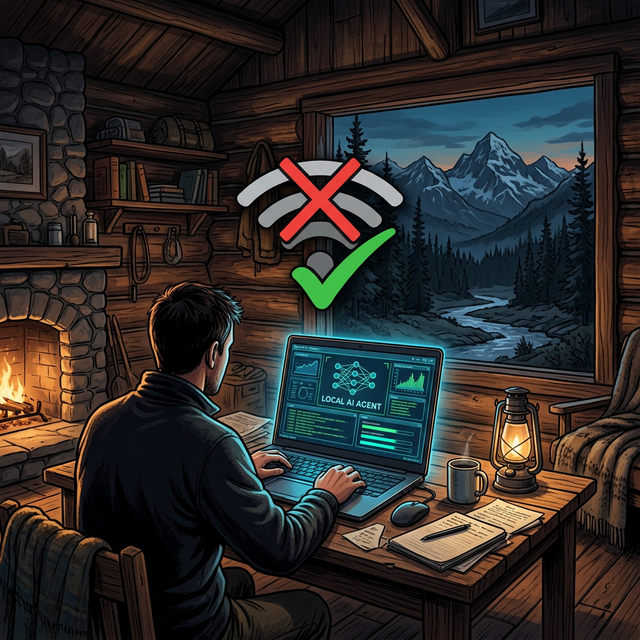
There is a scenario that every cloud-dependent AI user dreads: the internet goes out.
Maybe your ISP is having a bad day. Maybe you are on a 14-hour flight across the Pacific. Maybe you are working from a cabin in the mountains where the nearest cell tower is a two-hour drive away. Or maybe — and this is increasingly common in 2026 — you simply do not want any of your data leaving your machine.
For users of ChatGPT, Claude, or Gemini via their web interfaces, an internet outage means total silence. Your AI assistant vanishes. But for OpenClaw users who have configured a local model, something remarkable happens: nothing changes. The agent keeps working, keeps thinking, and keeps executing tasks — completely disconnected from the outside world.
This guide covers everything you need to know about running OpenClaw in true offline mode: the setup, the trade-offs, the model choices, and the real-world scenarios where going dark is not just an option but a strategic advantage.
What "Offline Mode" Actually Means
Let's be precise. When we say "offline mode," we mean an OpenClaw configuration where:
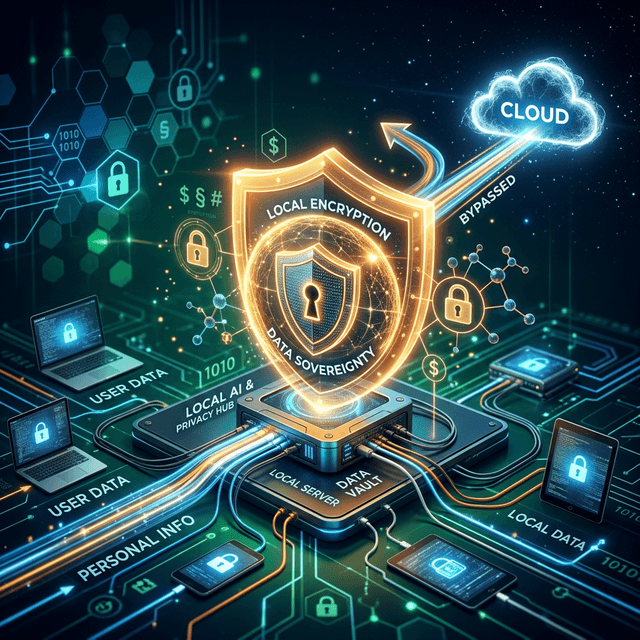
- No data leaves your machine. Zero API calls to OpenAI, Anthropic, Google, or any other cloud provider.
- The LLM runs locally. All inference happens on your CPU/GPU using a local model served by Ollama, llama.cpp, or a similar local runner.
- Skills operate locally. File management, local application control, and script execution all work. Skills that require internet access (email, web browsing, Slack) are gracefully degraded or queued for sync.
- Memory and storage remain local. All QMD blocks, session files, and logs stay on your encrypted local drive.
This is not a fallback mode. For many users, this is the primary mode — and for some, it is the only mode they ever use.
Why Go Offline?
1. Absolute Privacy
When you use a cloud LLM, your prompts — and every file, email, and document you share with your agent — are sent to a third-party server. Even with the best privacy policies and encryption in transit, the data exists, however briefly, on hardware you do not control.
In offline mode, your data never leaves the room. This matters enormously for:
- Legal professionals handling privileged client communications
- Healthcare workers processing patient data under HIPAA
- Financial advisors reviewing confidential portfolio information
- Journalists protecting source identities
- Anyone who simply values digital sovereignty
2. Resilience
Cloud services go down. APIs rate-limit. Servers get overloaded during peak hours. An offline OpenClaw agent is immune to all of these. It runs on your hardware, at your speed, on your schedule — regardless of what is happening on the internet.
3. Cost
Cloud API usage adds up. Running Opus 4.5 or GPT-5.2 at scale can cost hundreds of dollars per month for heavy users. A local model runs on electricity. Once you own the hardware, the marginal cost of each inference is effectively zero.
4. Speed (Sometimes)
For short tasks on powerful hardware, local inference can actually be faster than cloud APIs. There is no network latency, no queue, no cold start. Your M4 Mac Studio can start generating tokens the instant you send the request.
Setting Up Offline Mode
Step 1: Install a Local Model Runner
If you haven't already, install Ollama:
brew install ollama    # macOS
# or
curl -fsSL https://ollama.com/install.sh | sh   # Linux
Start the service:
ollama serve
Step 2: Download Your Models
This is the last step that requires internet. Download the models you want to use:
# General-purpose reasoning (recommended primary model)
ollama pull llama3.3:70b-instruct-q4_K_M

# Fast model for routine tasks
ollama pull phi4:14b-q4_K_M

# Coding specialist
ollama pull deepseek-coder-v2:16b-lite-instruct-q4_K_M

# Small model for constrained hardware
ollama pull gemma2:9b-instruct-q4_K_M
Storage note: The 70B Llama model is roughly 40GB. The smaller models range from 5GB to 10GB. Plan your storage accordingly.
Step 3: Configure OpenClaw for Offline
Update your configuration:
# ~/.openclaw/config.yaml

# Model configuration — local only
model:
  provider: "ollama"
  base_url: "http://localhost:11434"
  primary_model: "llama3.3:70b-instruct-q4_K_M"
  fast_model: "phi4:14b-q4_K_M"
  code_model: "deepseek-coder-v2:16b-lite-instruct-q4_K_M"
  fallback_model: "gemma2:9b-instruct-q4_K_M"

# Explicitly disable cloud fallback
cloud:
  enabled: false
  fallback: false

# Network policy
network:
  mode: "offline"               # Options: online, offline, hybrid
  allow_local_network: true     # Allow LAN access (for Syncthing, NAS, etc.)
  allow_internet: false         # Block all internet access

# Offline-aware skill configuration
skills:
  email-bridge:
    offline_behavior: "queue"   # Queue outgoing emails for later
  web-browser:
    offline_behavior: "disable" # Disable web browsing entirely
  file-manager:
    offline_behavior: "normal"  # Works perfectly offline
  calendar:
    offline_behavior: "cache"   # Use cached calendar data
Step 4: Verify Offline Operation
Disconnect from the internet and test:
# Verify the agent is running on local models
openclaw status

# Expected output:
# 🟢 OpenClaw v2.5.2 running
# 🧠 Model: llama3.3:70b (Ollama, local)
# 🌐 Network: OFFLINE MODE
# 💾 Memory: 847 QMD blocks loaded
# ⚡ Skills: 12 active, 3 queued (require network)
Model Selection for Offline Use
Choosing the right local model is the single most important decision for offline operation. Here is a practical guide based on your hardware:
Apple Silicon Macs
| Hardware | Recommended Model | Performance |
|---|---|---|
| M1/M2 (8GB) | Phi-4 Mini (3.8B) | 15-25 tok/s, basic tasks |
| M1/M2 (16GB) | Gemma 2 9B | 20-35 tok/s, good general use |
| M3/M4 Pro (36GB) | Llama 3.3 70B (Q4) | 15-25 tok/s, excellent quality |
| M3/M4 Max (64GB+) | Llama 3.3 70B (Q8) | 25-40 tok/s, near-cloud quality |
NVIDIA GPUs
| Hardware | Recommended Model | Performance |
|---|---|---|
| RTX 3060 (12GB) | Llama 3.1 8B | 40-60 tok/s, fast and capable |
| RTX 4070 Ti (16GB) | Llama 3.3 14B | 35-50 tok/s, strong reasoning |
| RTX 4090 (24GB) | Llama 3.3 70B (Q4) | 20-30 tok/s, premium quality |
| Dual RTX 3090 (48GB) | Llama 3.3 70B (Q8) | 15-25 tok/s, maximum quality |
The "Smart Routing" Approach
You do not need to use the same model for every task. Configure OpenClaw to route tasks to different models based on complexity:
model:
  routing:
    # Simple tasks (file management, formatting)
    simple:
      model: "phi4:14b-q4_K_M"
      max_tokens: 2048

    # Standard tasks (email drafting, research summaries)
    standard:
      model: "llama3.3:70b-instruct-q4_K_M"
      max_tokens: 4096

    # Complex tasks (code generation, multi-step reasoning)
    complex:
      model: "llama3.3:70b-instruct-q4_K_M"
      max_tokens: 8192
      temperature: 0.3   # Lower temperature for precision
This approach saves processing power on routine tasks while preserving your best model for the work that matters.
The Queue System: Bridging Online and Offline
One of OpenClaw's most elegant features is the Offline Queue. When the agent encounters a task that requires internet during offline mode, it does not fail — it queues the task for later.
queue:
  enabled: true
  storage: "~/.openclaw/queue/"
  sync_on_reconnect: true       # Auto-process queue when internet returns
  max_queue_size: 500            # Maximum queued tasks
  priority_on_sync: "fifo"       # First in, first out
Here is what this looks like in practice:
You: "Send Marcus the weekly report and then research competitor pricing"

OpenClaw [OFFLINE]:
✅ Weekly report drafted and saved to ~/reports/week-10.md
📫 Email to marcus@ridgeline.io QUEUED (will send when online)
📋 Research task "competitor pricing" QUEUED (requires web access)

2 tasks queued. They will execute automatically when network is restored.
When you reconnect, the queue flushes automatically:
🌐 Network restored. Processing 2 queued tasks...
✅ Email sent to marcus@ridgeline.io — "Dashboard Update — Week 10"
✅ Research task started — browsing competitor websites...
Real-World Offline Scenarios
The Traveling Executive
Sarah, a VP of Engineering, flies internationally every month. Her 12-hour flights used to be dead time. Now she loads OpenClaw on her M4 MacBook before boarding. During the flight, the agent reviews her backlog of documents, drafts responses to 30+ emails (queued for sending on landing), organizes her meeting notes into structured summaries, and prepares talking points for her next day's presentations — all without a single byte leaving her laptop.
The Air-Gapped Security Researcher
David works in cybersecurity. His analysis machine is physically disconnected from the internet — no Wi-Fi card, no Ethernet cable, no Bluetooth. He transfers malware samples via a dedicated USB drive. OpenClaw runs entirely on this air-gapped machine, analyzing code samples, writing reports, and managing his research database. The agent has never seen the internet, and David's classified analysis has never been processed by a cloud API.
The Rural Veterinarian
Elena runs a large-animal veterinary practice in rural Montana. Her internet is satellite-based and unreliable. On a typical day, she loses connectivity for 2–4 hours. Her OpenClaw agent, running on a Mac Mini in her office, manages patient records, drafts treatment plans, organizes her schedule, and generates invoices — all locally. When the satellite reconnects, queued emails and cloud sync happen automatically.
Security Hardening for Offline Mode
Running offline is inherently more secure than cloud mode, but there are additional steps to maximize your security posture:
security:
  # Encrypt all data at rest
  encryption:
    enabled: true
    algorithm: "AES-256-GCM"
    key_derivation: "argon2id"

  # Lock the agent when idle
  auto_lock:
    enabled: true
    timeout: "15m"
    require_password: true

  # Disable all network interfaces (belt and suspenders)
  network_hardening:
    disable_wifi: false          # Set to true for air-gapped setups
    disable_bluetooth: true
    firewall: "strict"
Conclusion
Offline mode is not a compromise. It is a feature. It transforms OpenClaw from a cloud-dependent assistant into a truly sovereign AI agent — one that works on your terms, on your hardware, with your data never leaving your control.
Whether you are an executive on a plane, a security researcher in an air-gapped lab, or simply someone who believes that privacy should not require an internet connection, offline mode gives you the full power of autonomous AI without any of the dependencies.
Download your models. Configure offline mode. Disconnect. Your agent does not need the cloud. It just needs you.